
$59.90
Free delivery · 7–14 days
Wi-Fi Smart Wall Switch Module for Alexa Voice Control
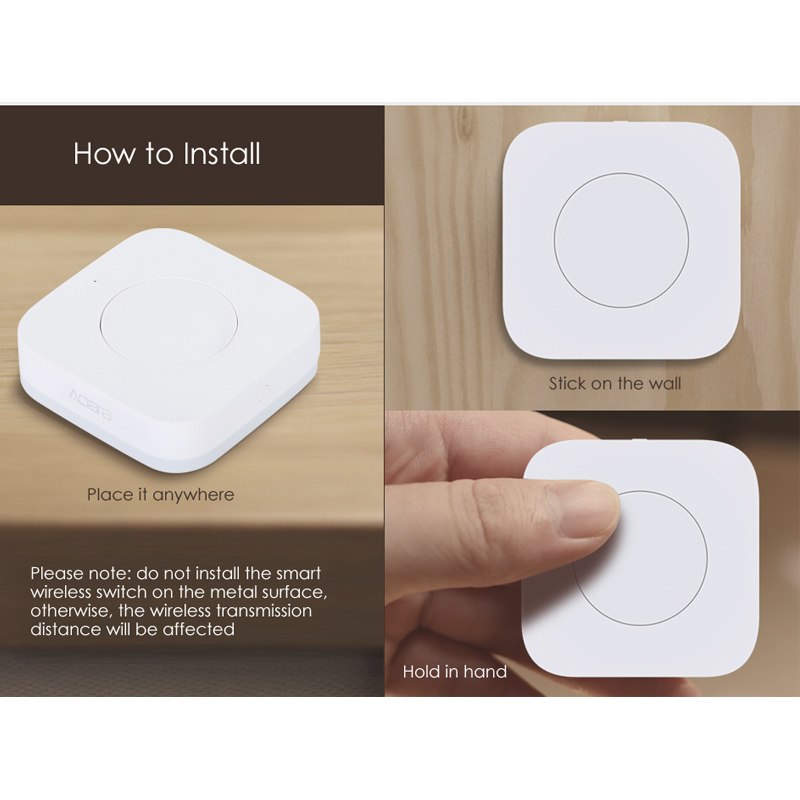


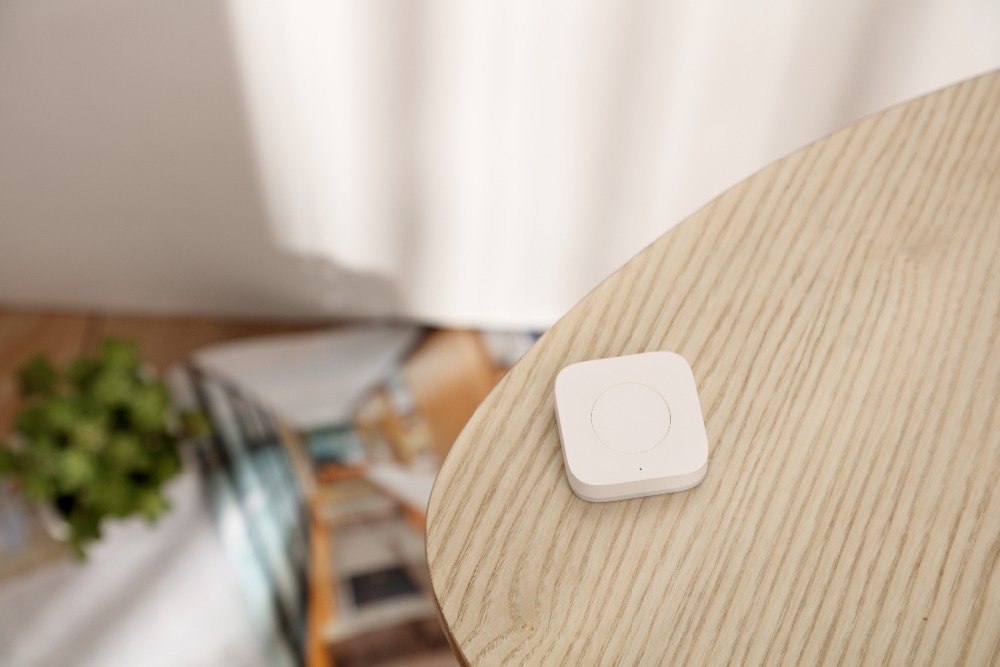

Stop walking to the wall for every scene. This wireless one-key switch sticks to a wall or sits on a table, and one press runs the Aqara or Mijia scene you already built. It needs no wiring, so it fits rentals as well as owned homes.
Read the full descriptionStop walking to the wall for every scene. This wireless one-key switch sticks to a wall or sits on a table, and one press runs the Aqara or Mijia scene you already built. It needs no wiring, so it fits rentals as well as owned homes.
One-key wireless control for your smart home, placed anywhere without wiring
Before: getting up in the dark to find a wall switch or open an app. After: one press from the sofa, and your Aqara scene runs.

The switch is wireless and sticks to a wall with its adhesive mount, or it sits on a side table where you actually reach for it. No wiring, no electrician, no changes to the wall switch that is already there. Move it in a minute if your routine changes.

A small LED indicator sits beside the button and shows the switch is active. A quick glance tells you the press registered, so you do not stand there pressing again wondering if the lights heard you.
Open the Aqara app, add a new wireless switch and follow the pairing prompts. Keep the switch close to your hub while it pairs.
Pick the scene you run most, such as evening lights or bedtime. Start with one scene so you always know which action ran.
Press the button from the spot you want to use. If the scene runs, stick the switch to a wood, plaster, glass or plastic surface, or set it on a table away from metal.
Yes, it runs inside the Aqara and Mijia ecosystem. You need a compatible hub and the Aqara app to pair the switch and assign a scene. Scenes you already built are ready to be linked to the button.
Skip metal surfaces. Metal interferes with wireless transmission and shortens the distance the signal travels. Wood, plaster, glass, plastic or a plain table all work. Test a press from your chosen spot before you commit to a position.
Yes, the switch uses an adhesive mount, so no drilling is needed. It holds best on smooth paint or glass. Textured walls grip less firmly, so a table or a flatter section of wall is the better choice there.
It can, but start with one. Assign a single scene, use it for a few days, then add more. That way you always know which action ran when you press.
A phone route means unlocking, opening the app and tapping. A voice assistant depends on timing and a quiet room. One press from the same spot runs the scene every time. If you trigger the same scene every night, that saved walk and unlock adds up faster than the cost of the switch.


 Wireless Smart Scene Switch for Aqara Home Automation