
$46.90
Free delivery · 7–14 days
4-in-1 SD and TF Card Reader for iPhone, Android & PC

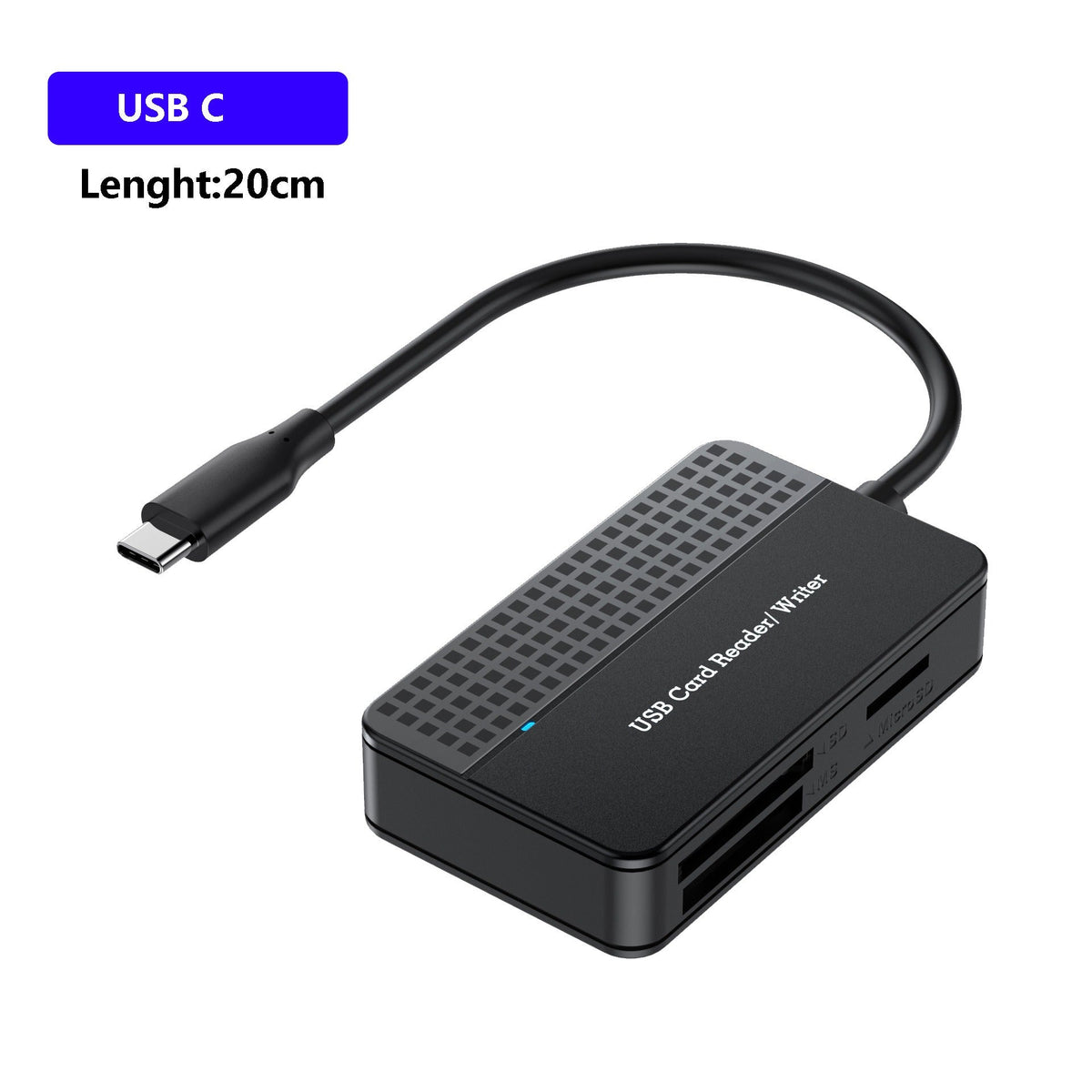


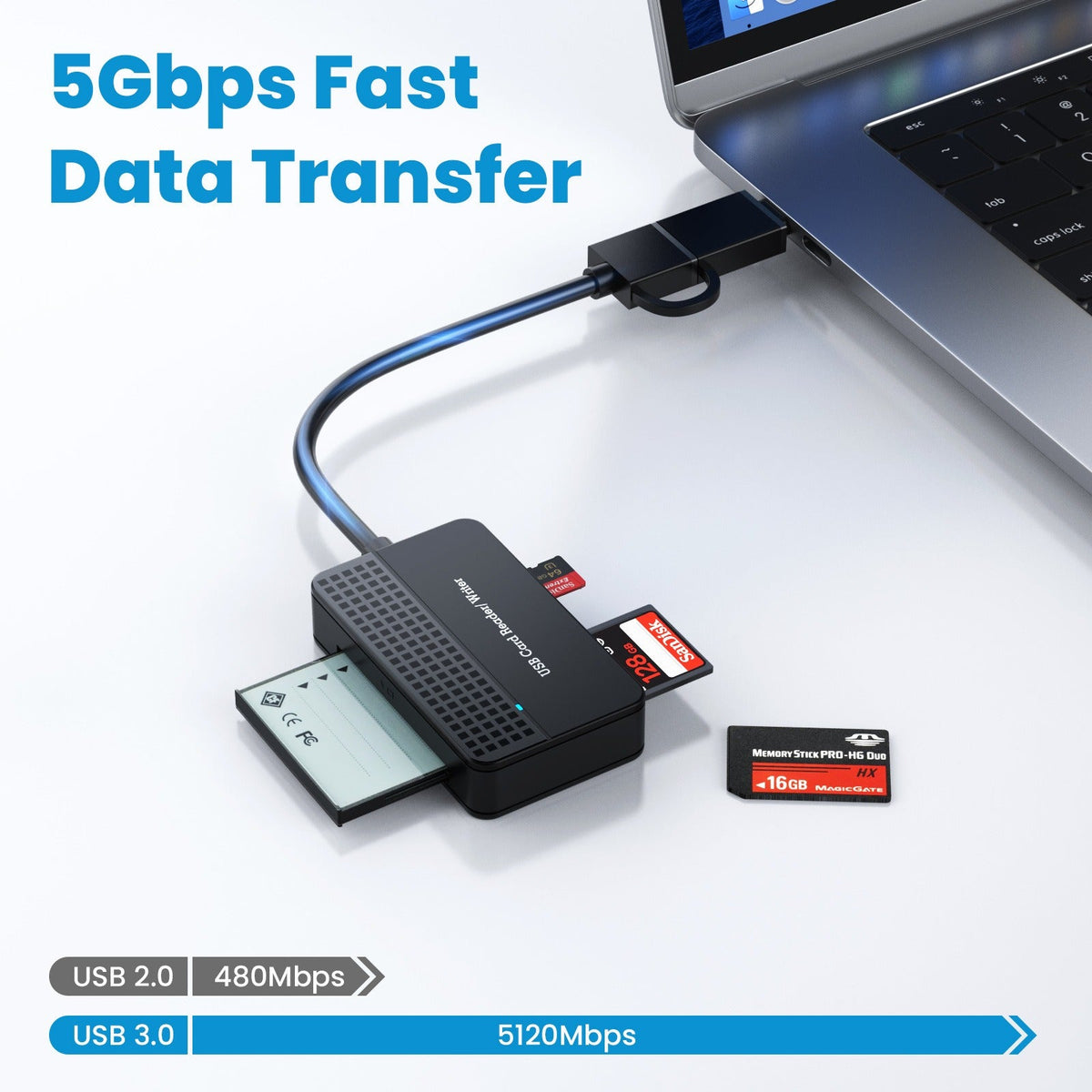
Drop any CF, SD, microSD or Memory Stick card into one matte black reader and copy it through USB-C or USB 3.0. The detachable cap means one purchase covers the laptop you have now and the one you buy next. Slots are marked on the body, and a blue LED shows when the copy is...
Read the full descriptionDrop any CF, SD, microSD or Memory Stick card into one matte black reader and copy it through USB-C or USB 3.0. The detachable cap means one purchase covers the laptop you have now and the one you buy next. Slots are marked on the body, and a blue LED shows when the copy is running.
One compact reader for CF, SD, microSD and Memory Stick cards with both USB-C and USB 3.0 connections
Stop digging through adapters before every import. One matte black reader takes CF, SD, microSD and Memory Stick, and connects over USB-C or USB 3.0.

CF, SD, TF/microSD and Memory Stick slots sit in one body. The openings are marked on the case, so you stop guessing which card goes where at the desk or on location.

The detachable cap switches between a USB-C plug and a USB 3.0 Type-A connector. One purchase covers a new laptop with only USB-C ports and an older machine with Type-A, so you never buy a second reader.

Matte black plastic with a grid-textured top panel and a blue activity LED. The body is small enough to sit in a camera bag pocket next to the spare cap and the cable, which runs about 20cm.
Choose the USB-C cap for a USB-C port or the USB 3.0 Type-A cap for a standard port, and slide it onto the plug end.
Check the slot marking on the body, then slide the card in gently until it sits flush. Do not force it.
The blue activity light flashes while the copy runs. Wait until it stops before you remove anything.
Eject the card from your operating system, then pull it from the reader. Keep the spare cap clipped to the cable so it does not get lost.
Four card slots: CF, SD, TF/microSD, Memory Stick
Fits USB-C ports on laptops and tablets
Fits standard USB 3.0 Type-A ports
| This reader | Single-format reader | Loose adapters | |
|---|---|---|---|
| CF card slot | — | — | |
| Memory Stick slot | — | — | |
| USB-C connection | Partial | Partial | |
| Swappable connector cap | — | — | |
| Blue activity LED | Partial | — |
Yes. The body has dedicated slots for CF, SD, TF/microSD and Memory Stick cards. Insert each card into its marked opening and wait for the blue LED to stop flashing before you eject.
Use the USB 3.0 Type-A cap on a USB 3.0 port for the fastest copy. Real transfer speed depends on the card and the port, so the cap choice is the one setting you control.
Use the USB-C cap on laptops and tablets with only USB-C ports. Use the USB 3.0 Type-A cap on older machines with a standard rectangular port. Both caps come with the reader.
One reader that covers four formats and both connectors costs less than buying separate single-format readers, and it takes up one slot in the bag instead of several. If you offload cards a few times a month, the time saved at the desk adds up fast.


 CF SD microSD Memory Stick Card Reader USB-C