
$89.90
Free delivery · 7–14 days
USB WiFi Adapter AC1200 Dual-Band with High-Gain Antennas
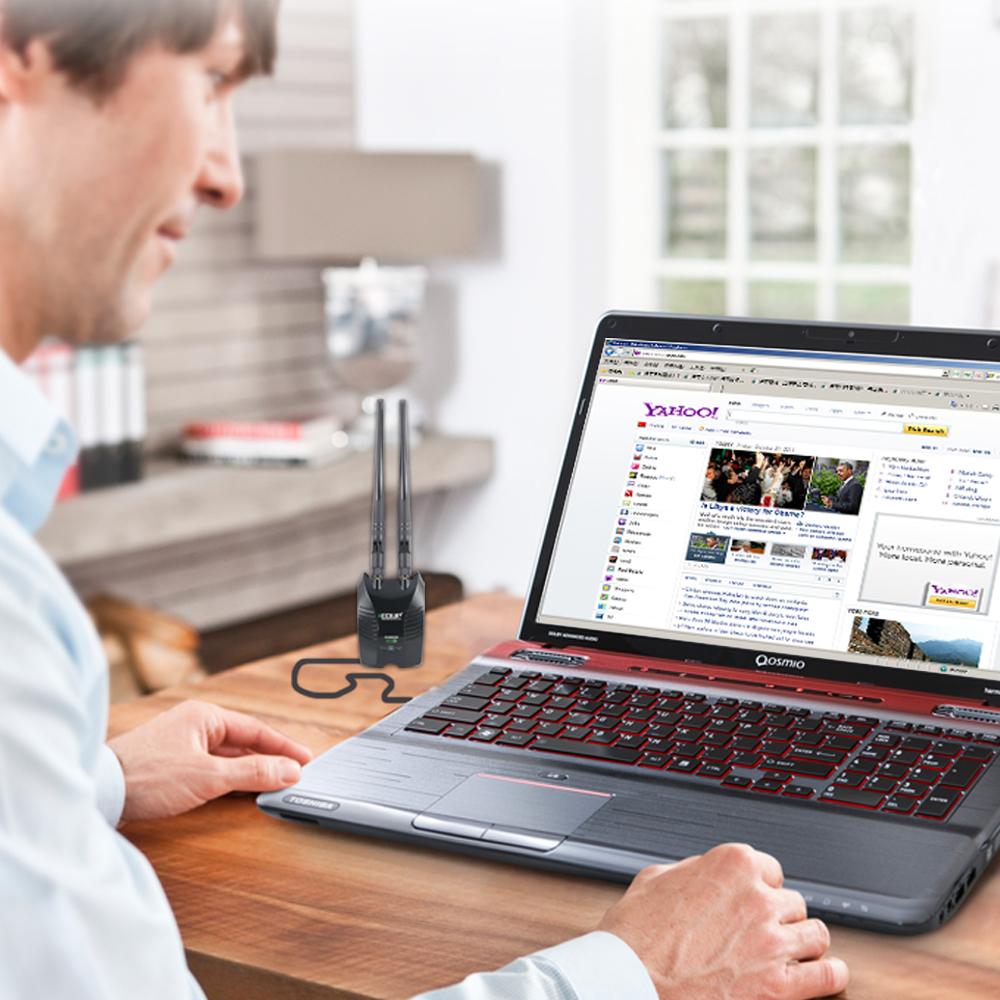


A USB Wi-Fi adapter with two detachable 5dBi antennas that brings a steady 150Mbps link to a desktop with no built-in wireless. Plug it into a USB port, raise the antennas toward your router, and keep calls from freezing mid-sentence.
Read the full descriptionA USB Wi-Fi adapter with two detachable 5dBi antennas that brings a steady 150Mbps link to a desktop with no built-in wireless. Plug it into a USB port, raise the antennas toward your router, and keep calls from freezing mid-sentence.
Double high-gain antennas for stronger, longer-range 150Mbps wireless
Your desktop has no Wi-Fi and the router is across the room, so calls drop and downloads crawl. Plug in this USB adapter, raise the two antennas, and get a steadier 150Mbps link from the far end of the room.

Each antenna is a 5dBi unit on an RP-SMA connector, so you can point them at the router, a wall, or the window. A flat dongle gives you one fixed angle. These two let you find the spot where the link is strongest and keep it there.

The adapter is a USB plug-in receiver, and the included USB extension cable lets you lift it away from the back of the tower. No internal card, no screwdriver, no cable through the wall. The lime green status LED shows when the link is live.

150Mbps is the wireless link rate printed on the box. It covers browsing, streaming and video calls on most home plans. If your internet plan is faster than that, this adapter will cap your wireless speed, so check your plan first.
Load the driver from the included CD, or download the latest version if your PC has no optical drive. Install it before you plug the adapter in.
Plug the USB extension cable into a rear or front USB port, then attach the adapter. The status LED lights up when the adapter has power.
Attach both antennas to the RP-SMA connectors with a short, firm twist. Raise them to a vertical or angled position rather than leaving them flat on the desk.
Pick your network from the list, then run a speed test. Move the adapter or angle the antennas until the connection holds steady, and note the spot that works best.
Glossy black body with lime green status LED
5dBi each, matte black with gold-tone RP-SMA connectors
Lifts the adapter clear of the tower back panel
Install before plugging in the adapter
The router sits in the hallway and the desktop sits in the back room. Every video call stutters mid-sentence, and large files stall halfway. A stock dongle with no antennas does not fix the problem, because it has nothing to pull in a weak signal from across the room.

Two detachable 5dBi antennas screw onto the adapter and can be angled toward the router. The USB plug-in design needs no internal card and no drilling. A short extension cable keeps the body clear of the tower's rear panel, so the antennas sit where the signal is. If you want more reach through a whole floor, a wifi signal booster is the other route, but it adds a second hop.
Setup takes one driver install and a few minutes of antenna adjustment. Once the angle is set, the link stays put. Calls hold together, uploads finish, and the desk works the way it should without moving the router or running a wire across the floor.
The adapter shows up in your network list once the driver is in place. Connect to your router and run a speed test to record a baseline.
After a few sessions you will know which angle and desk spot give the steadiest link. Write down that position for your room.
With regular use, calls and browsing usually feel steadier than before. Results depend on your router, the walls between you and it, and your internet plan.
| EDUP RT3070L | Stock USB dongle | Wi-Fi extender | |
|---|---|---|---|
| Detachable external antennas | — | — | |
| Adjustable antenna placement | — | Partial | |
| Connects directly to the router | — | ||
| Adds a second wireless hop | — | — | |
| Works as USB Ethernet function | — | — |
The packaging lists Windows XP, 7, 8 and 10, and Mac OS X 10.07 to 10.11. Windows 11 and newer macOS versions are not on that list, so check the driver and your OS version before you buy. If your machine runs one of the listed systems, the included driver CD covers setup.
150Mbps is the wireless link rate, and real throughput depends on distance, walls and your router. For most home plans, browsing, streaming and video calls run without trouble. If your plan is faster than about 150Mbps, this adapter will be the bottleneck, so compare your plan speed first.
Many desktops will not have a Wi-Fi driver for a USB adapter built in, so the included CD or the latest download from the maker is the reliable route. Install the driver before you plug the adapter in, then restart if prompted. Skipping that step is the most common reason the adapter does not show any networks.
Walls cut signal, and the amount depends on the material. The two 5dBi antennas let you aim the signal through the thinnest wall or toward a doorway. Place the adapter where it has a line of sight to the router if you can, then adjust the antenna angle until the link is strongest.
An extender repeats the signal, which adds a second hop and often costs speed. This adapter connects your desktop directly to the router you already have, with no extra hardware in the middle. Over a year, that is one purchase instead of a second device to power, place and troubleshoot.


 USB Wi-Fi Adapter with Dual 5dBi Antennas for Desktop